Creating Custom Tools
Custom tools extend AI In A Box's capabilities by allowing the LLM to interact with your ServiceNow data and business processes. This guide walks you through creating a simple tool from scratch.
Video Walkthrough
Watch this complete demonstration of creating and testing a custom tool:
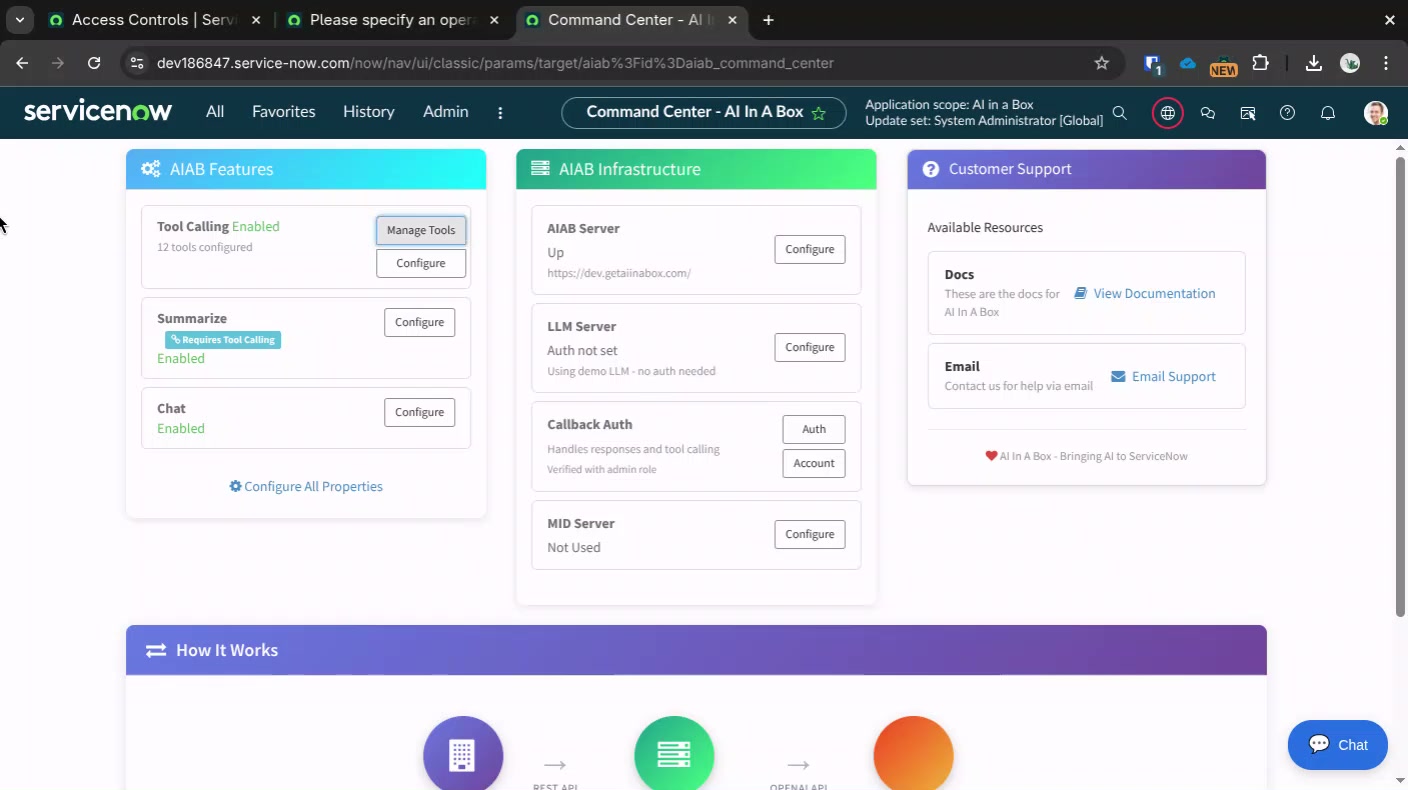
Click to play video (4 minutes 52 seconds)
What You'll Build
In this tutorial, you'll create a tool called count_letters_in_word that counts how many times a specific letter appears in a word. While simple, this demonstrates all the key concepts:
- Defining tool parameters with JSON Schema
- Writing the tool script that processes inputs and returns results
- Testing the tool in the inference viewer
Step 1: Create the Tool Record
- Navigate to AI In A Box > Tools in the ServiceNow application menu
- Click New to create a new tool
- Fill in the basic information:
Name
Use snake_case (lowercase with underscores): count_letters_in_word
Description
Enter a simple description:
Counts the letters in a wordStep 2: Define Parameters
In the Parameters field, enter JSON Schema that describes what inputs the tool needs:
{
  "type": "object",
  "properties": {
    "word": {
      "type": "string",
      "description": "The word we're going to search."
    },
    "letter": {
      "type": "string",
      "description": "the letter we're going to use to search the word."
    }
  },
  "required": []
}Step 3: Write the Script
In the Script field, enter the JavaScript code that executes when the tool is called:
(function(args, userId) {
    var returnObj = {};
    if (!args.word) return { error: "word is required" };
    returnObj.count = 0;
	var word = args.word.toLowerCase();
	var letter = args.letter.toLowerCase();
	var wordArr = word.split('');
	wordArr.forEach(function(wordLetter){
		if(wordLetter == letter){
			returnObj.count++;
		}
	});
    return returnObj;
})(args, userId);
Script Structure Explained
- Function wrapper:
(function(args, userId) { ... })(args, userId);- This is the required format - args: Contains the parameters passed by the LLM (word, letter)
- userId: The sys_id of the user who made the request (for ACL purposes)
- Return: Must be a JSON-serializable object
Step 4: Configure Execution
Set the following fields:
- Execute in:
servicenow(runs on the ServiceNow instance) - Active:
true(enables the tool)
Step 5: Test the Tool
- Save the tool record
- Navigate to AI In A Box > Inference Viewer
- Click New to create a test inference
- In the Tools field, select your
count_letters_in_wordtool - Ask a question like: "How many times does the letter 'e' appear in 'red'?"
- Submit the inference and watch the tool execute
Understanding the Results
In the inference record, you'll see:
- Tool Calls: Shows the tool that was called and the arguments
- Response: The final answer from the LLM
- System Log: Technical details about the execution
Next Steps
Now that you understand the basics, try creating more advanced tools:
- Tools & ACL Security - Learn about GlideRecordSecure and ACL enforcement
- search_catalog example - See a real-world catalog search tool
Troubleshooting
Tool Not Appearing in Inference
- Check that Active is set to true
- Verify the tool is selected in the inference's Tools field
- Ensure Tool Calling is properly configured
Script Errors
- Check the System Log on the inference record for error messages
- Validate your JSON in the Parameters field
- Ensure your script returns a valid object (not undefined or null)
LLM Not Using the Tool
- Improve the tool description to be more explicit about when to use it
- Make parameter descriptions clearer
- Try a more direct prompt like "Use the count_letters_in_word tool to..."
Support
Need help creating custom tools?
- Contact Support
- Schedule a call with our team